

What happens on first login
When you log in to EarthRanger Mobile for the first time, or when logging in with a user account that isn't stored on the device, the app performs a full sync to build the local database from scratch. This requires a stable network connection and may take a few moments depending on the size of your site's data.
The following resources are downloaded and stored locally during this initial sync:
- User accounts
- User Tracked By subjects
- Event categories
- Event types
- Patrol types
- Subjects
- Subject tracks
 |
 |
 |
 |
Once complete, the app redirects to the Map view and is ready to use — including in areas with limited or no connectivity.
Note: If the account you log in with is different from the one previously stored on the device, the existing local database is deleted before the new sync begins. Any unsynced data from the previous session that hasn't uploaded will be lost.
Sync Data in EarthRanger Mobile
There are three ways to trigger a sync:

|
1. Tap the Sync button in Settings The manual sync option. Navigate to Settings and tap the Sync button to immediately check for changes and upload any pending data. The Sync button grays out while the process is running and becomes active again once the sync is complete. |
 |
2. Close and reopen the app Each time the app launches, it checks for changes during the splash screen. A loader is shown while this check runs. Note that the splash screen sync is optimized for speed — it only checks for updates to event types, patrol types, and user or profile data, not the full resource set. |
|
 |
3. Log out and log in as a different user When you log in as a user not currently stored in the local database, the entire database is deleted and rebuilt from scratch. This syncs all resources regardless of whether changes were detected. Note that this will delete all locally stored data. |
What gets synced
Different sync methods check for different data. Here's what each method covers:
| Resource | Settings sync button | Splash screen (app relaunch) | New user login |
| User accounts | ✓ |
✓ |
✓ |
| User Tracked By subjects | ✓ |
|
✓ |
| Event categories | ✓ |
|
✓ |
| Event types | ✓ |
✓ |
✓ |
| Patrol types | ✓ |
✓ |
✓ |
| Subjects | ✓ |
|
✓ |
| Subject tracks | ✓ |
|
✓ |
| Remote events | ✓ |
|
✓ |
All sync methods require a stable network connection.
Sync also uploads pending field data
When you tap the Sync button in Settings, the app also attempts to upload any pending data from the device, including:
- Events
- Patrols
- Tracks
You can monitor the upload status of tracks in the Patrols view, where the Tracks section shows the number of items pending sync and the timestamp of the last successful sync.
Example: syncing after an admin change
| A user is logged in and has access to an event category called Monitoring, which contains two event types: Human Wildlife Coexistence and Human Wildlife Coexistence (old). | 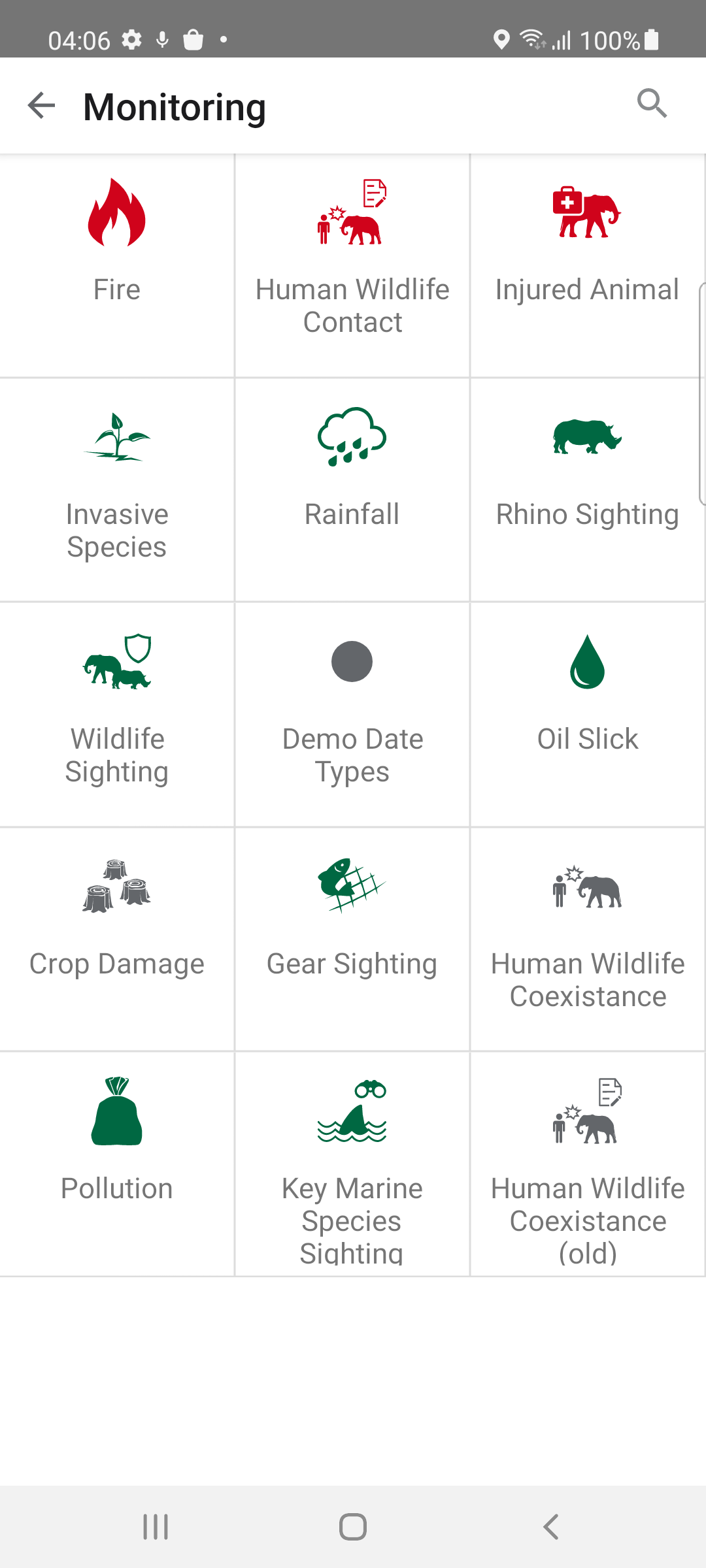 |
| An admin deletes Human Wildlife Coexistence (old) from the EarthRanger admin interface. | 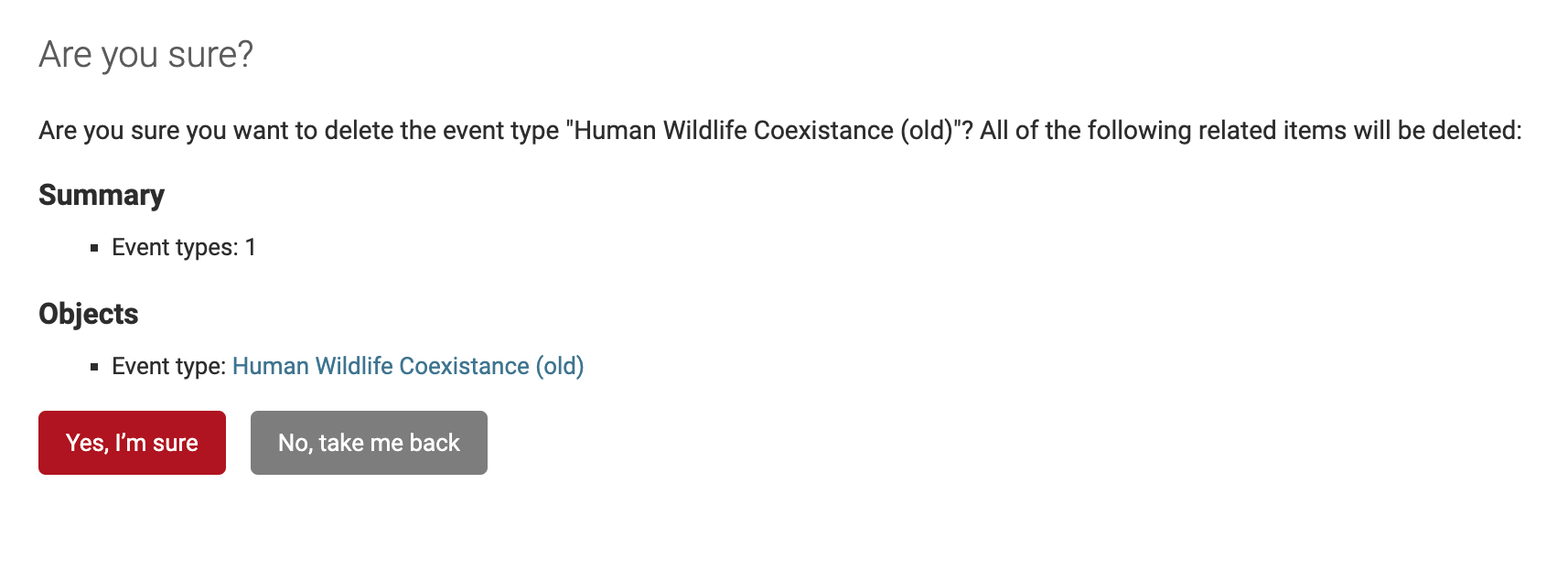 |
| The change is live on the web platform, but the mobile app still shows the old Event Type because its local database hasn't updated yet. | 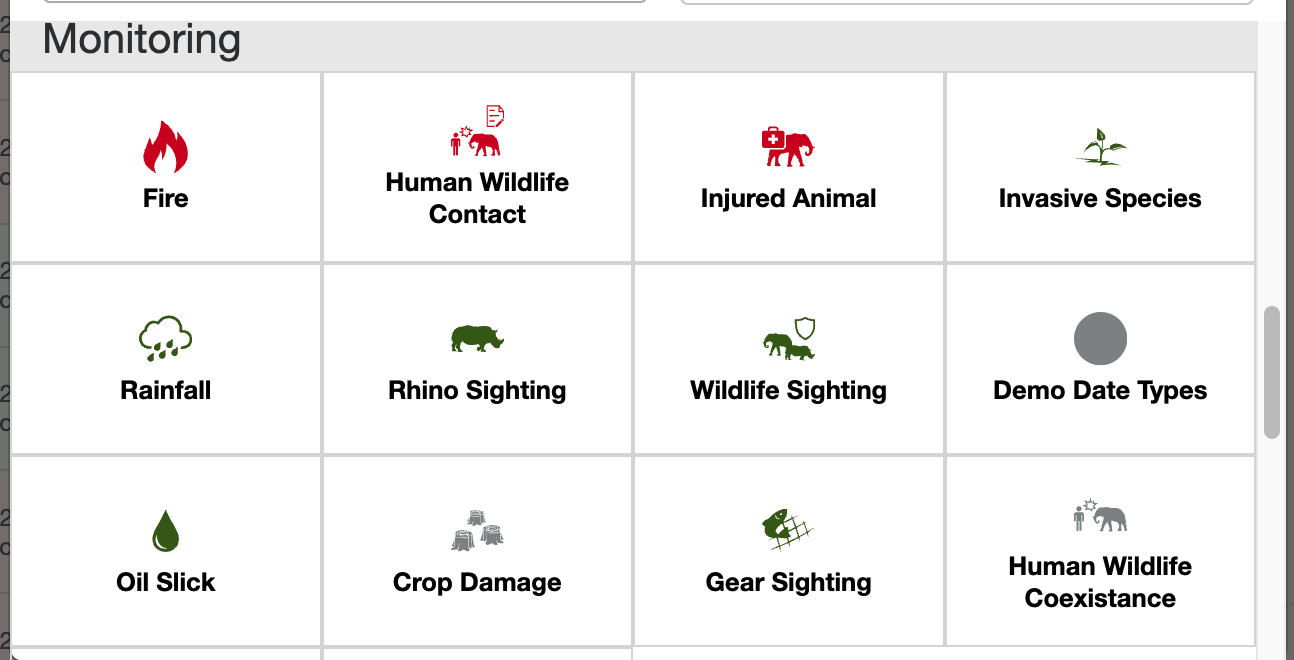 |
|
To sync the change to the app:
|
What triggers a full database reset
When a different user logs in and their account is not in the local database, the entire local database is deleted and re-synced from the platform. This ensures the new user only sees data they have permission to access. Because all data is deleted and re-downloaded, this process takes longer than a standard sync.
EarthRanger 3.0.0